Document Review
Often, writing code is only a small part of a software development project. Along the way, numerous documents are produced and discussed, including requirements documents, feature specifications, and technical documentation for end-users.
Our Document Review allows you to apply the same peer review process to all of these as you do for your source code. You can review:
Microsoft Office documents (Word, Excel, PowerPoint)
OpenOffice/LibreOffice documents (Writer, Calc, Impress)
Google Workspace documents (Docs, Sheets, Slides)
PDF documents
This feature requires some additional set up to support review for Office documents. PDF review works right out of the box.
Creating a Document Review
To review a document, you need to start with a review request. You can attach document files to any existing review request, or if you want to create one solely for the document, select New Review Request, and then choose (None - File attachments only) when selecting a repository.
Once you have a review request, drag and drop a file onto the browser window or click . This will add the file to the review request, and will be reviewable once the review request is published.
Note
Office document files may take a few seconds to load since they are being converted to PDFs to be displayed for review.
Browsing a Document
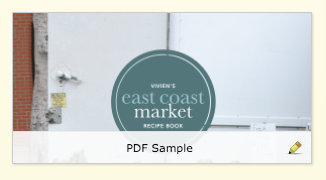
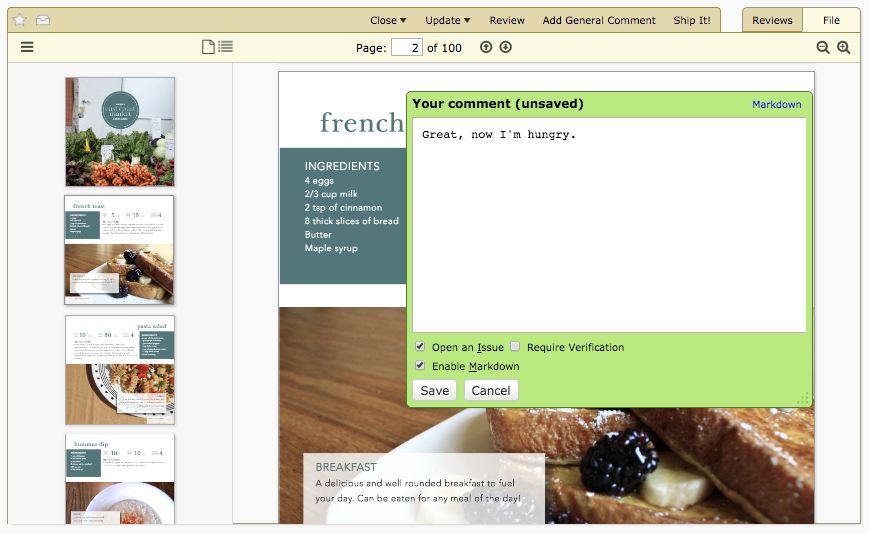
To open up the Document Review page, simply click on the thumbnail for the file attachment on the review request page. This will bring up an interface for browsing the document.
Note
Some Office documents may appear slightly different here, such as having different fonts from the original document. This is because the documents get converted to PDFs for display.
You can mount fonts into the Doc Converter service to help with this. And, you can always download and view the original document by hovering over its thumbnail and clicking Download.
This interface has several controls for browsing through the document.
At the top-left is a toggle for a sidebar which can be used to browse through the document. When the sidebar is open, it can show either a list of pages or the table of contents. Not all documents contain a browsable table of contents; if a document does not, the sidebar will only contain the page list.
In the center of the top bar are controls for jumping to a specific page or moving back or forward a page.
At the top-right are controls for zooming in and out of the document and for zooming to fit the width or height of the document pages.
Commenting On a Document
You can make two types of comments on a document:
Region selection comments
Text selection comments
These commenting modes can be toggled on and off using the toolbar on the right-hand side of the document viewer. The toolbar appears when you mouse over the document or its margins. By default, both commenting modes are on.

To create a new region comment, simply click and drag to select the desired area. This will pop open a new comment dialog, just like in the diff viewer.

To create a new text comment, simply select the desired text.

Comments support rich text using the Markdown language. See Using Markdown for more information.
The file attachment comment dialog supports issue tracking. See the section on Issue Tracking for more information.
Once you’re done writing your comment in the text area, click Save to save the comment. The draft comments that you’ve made will appear in green on the document.

You can also move region comments by dragging the numbered box in the top-left corner and resize them by dragging the bottom-right corner.
Reading Existing Comments
When your mouse cursor is over the document, other comments may appear in blue. Each of these is a comment from someone’s published review. The number in the top-left corner shows how many comments have been made on that region or text selection.
If you move the mouse cursor over the comment, a tooltip will appear showing a summary of the comments made.
If you click on the comment, the comment dialog will appear, along with a side panel on the left showing those existing comments. You can still write a new comment in the comment box on the right.
Note
It’s important to note that this is not the place to reply to those comments. When you add a comment from the document viewer, it’s creating a new top-level review (akin to a new thread). If you want to reply to existing comments, you can do so from the Reviews page. The Reply link here is a shortcut to jump directly to the relevant comment on the Reviews page.
The view here is meant to be used only as a reference to see if other people have already said what you plan to say.
Viewing Other Document Revisions
New in version 3.0.
As explained in Reviewing File Attachments, you can view and compare revisions of a document file attachment. When multiple revisions are present, a slider will be available to allow you to select either a single revision to view or two revisions to compare.
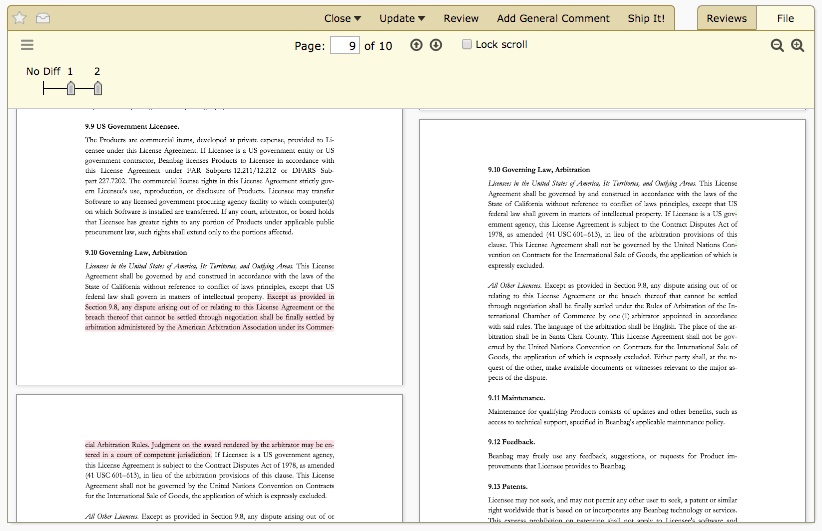
When comparing two revisions, the two documents are shown side by side, much like in Review Board’s diff viewer. The differences between the revisions are displayed in two ways: highlighted regions on each of the documents, and in a sidebar mode.
Note
Due to the complexity of the PDF format, comparing two revisions for the first time can take a while, especially for large documents. During this time, a spinner will be shown next to the revision selector. Subsequent loads of the same diff will load much more quickly.
The highlighted regions will show red blocks on the left for text that was deleted, and green blocks on the right for text that was added. Moved text will be shown as deleted from the left and added to the right. The list of diffs can be seen in the sidebar by clicking on the columns icon. Each entry in the sidebar corresponds to a region on a page, and will additionally show whether those regions represent text that was moved instead of just added or removed. Clicking on an entry will scroll to the relevant position in both documents.
Note
Most document editing software will create PDFs that work well with the diff display in Review Board, but not all. The PDF format is fundamentally designed as a display and printing format, and not for document editing and management. Depending on how your PDFs are created, they may not actually contain usable text content with which to compute diffs.
For example, most scanned documents only contain images of the text rather than the text itself, and some publishing software will create PDFs which represent each letter as a shape instead of as a computer-readable character with an embedded font. There may also be cases where saving some documents can cause text to be incorrectly detected as moved (such as filling out some PDF forms).